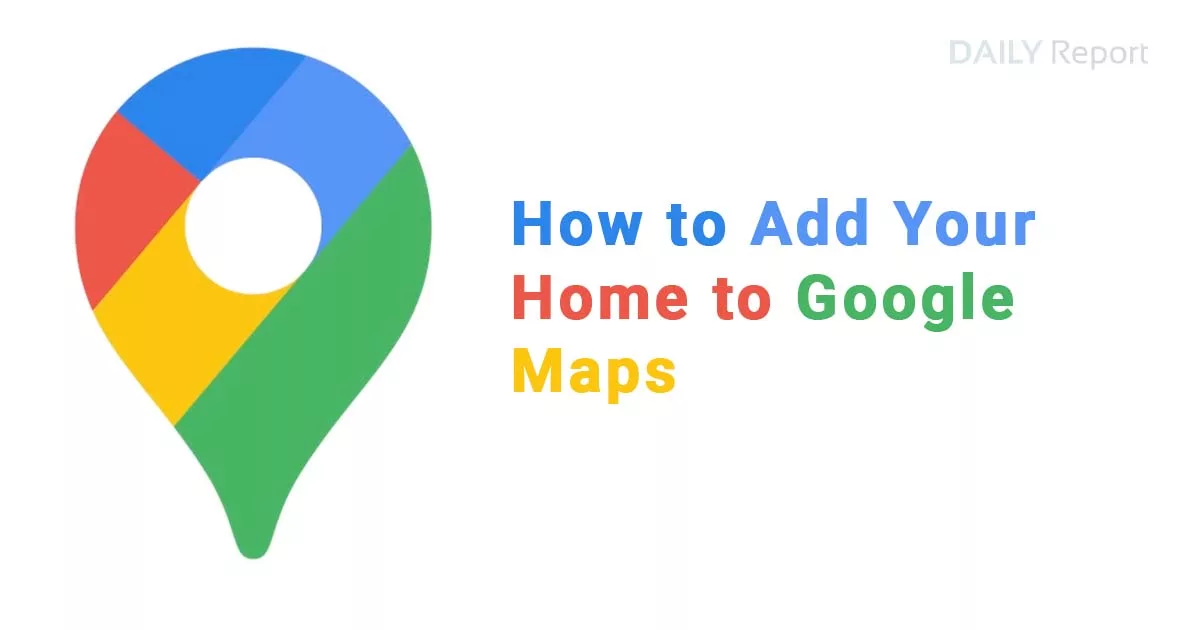
Don’t Get Lost: How to Add Your Home to Google Maps
Google Maps is an essential tool for navigating the world, and having your home address readily available can save you tons of time and frustration. But how do you add your home to Google Maps?
There are two ways to do this, depending on whether you want it for simple navigation or for it to be a searchable location.
Saving Your Home for Easy Navigation:
This is the simplest method and creates a quick reference point for you.
- Open the Google Maps app on your phone or tablet.
- Tap the “Saved” tab at the bottom of the screen.
- Look for “Labeled” and tap it.
- Here, you’ll likely see options like “Home” and “Work” (or neither if you haven’t set them before).
- Select “Home” and you’ll be prompted to enter your address or drag the pin to your exact location on the map.
- Hit “Save” and your home is ready for easy access whenever you need directions.
Adding Your Home as a Searchable Location (Not Recommended):
While not recommended for privacy reasons, it is possible to add your home as a searchable location on Google Maps. This process involves submitting a “missing place” request.
Important Note: Before you proceed, keep in mind that making your home address publicly searchable might not be the best idea.
However, if you decide to go ahead, here’s how:
- Open Google Maps on your computer.
- Search for your exact address.
- On the left side panel, you might see an option for “Add a missing place.” Click on that.
- Here, you can enter your address details and choose a category (there isn’t a specific option for a house, you might have to choose something generic like “residential”).
- Fill out any additional information and submit your request.
Remember: Google needs to approve your request, and it may not be shown publicly. This method is not recommended for privacy reasons, so the first method (saving your home for navigation) is the preferred option.
Bonus Tip: You can also set your home location through your Google Account settings. This will integrate it with various Google services for a more seamless experience.
By following these steps, you can easily add your home to Google Maps and enjoy the convenience of having it at your fingertips whenever you need it. Just remember, to prioritize privacy and use the first method for navigation purposes.